
Manage additional workflows in Volto#
In this tutorial we will drive an additional workflow entirely from the Volto interface.
We will find the second workflow in the toolbar, transition it, watch the publication state stay exactly where it was, and then read a history that spans both workflows.
By the end you will know where every additional workflow appears in the interface, and what each part of it is telling you.
What you need#
A site with the worked example installed, as described in How to install the worked example. Both the demo profile and its example content.
The Volto add-on registered in your frontend, as described in How to install collective.multiworkflow.
A browser, logged in as a user who may edit content.
The example content gives us a Profile object to work with.
We will use Erica Ortegas, at /profiles/ortegas.
Step 1: Find the second workflow#
Open /profiles/ortegas in your browser.
Open the toolbar and select More.
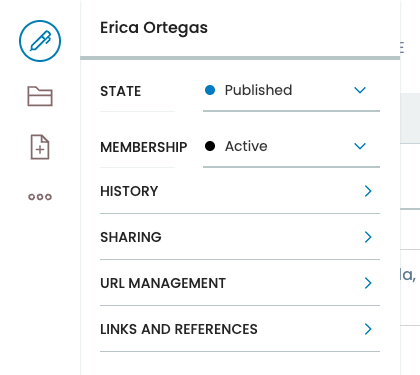
Look at the top of that menu.
STATE is the control Plone has always shown, and it reads Published.
MEMBERSHIP is the workflow the foundation_member behavior contributed, and it reads Active.
Notice that this is one menu, not two. The additional workflow is not tucked away somewhere else in the interface; it sits directly beneath the publication workflow, in the place you already look for an object's state.
Notice also that each row is labeled with its workflow's own title.
MEMBERSHIP is the title of foundation_member_workflow, translated by the backend before it ever reached the browser.
Step 2: Open the membership control#
Select the Active control on the MEMBERSHIP row.
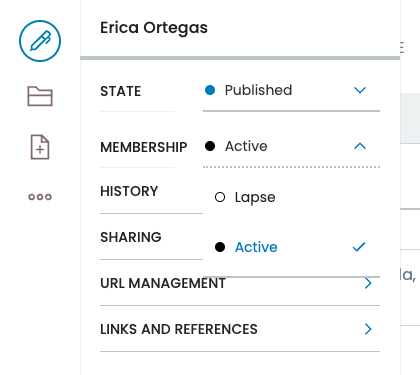
The control offers Lapse, and marks Active as the state you are in.
These are the membership workflow's own transitions, and only those. The publication workflow's transitions stay on the STATE row above, where a client that knows nothing about this add-on would expect to find them.
Step 3: Transition the membership#
Select Lapse.
The control updates, and the row now reads Lapsed.
Now look at the row above it.
STATE still reads Published.
This is the moment the whole add-on exists for. You changed a workflow state on this object, and the object's publication state did not move, because the two workflows drive different variables. Nothing you do in the membership workflow can publish or retract this profile.
Select the membership control once more and you will see Activate offered, because Lapsed is a state the workflow can be renewed from.
Step 4: Read the history of both workflows#
Open the toolbar menu again and select HISTORY.
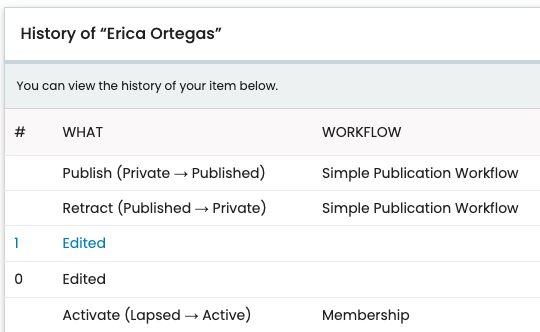
Every workflow's transitions arrive in one table, newest first.
Notice the WORKFLOW column. It appears because this object's history spans more than one workflow, and it names the workflow that recorded each row. On an object with a single workflow the column is not rendered at all, and the table is the one Plone has always shown.
Notice too that the Edited rows name no workflow.
Those are versioning entries, and they belong to no workflow at all.
Read the WHAT column down the table.
Each row reports the states that transition moved between, and it does so per workflow: a Membership row reports membership states, and a publication row reports publication states, even where the two are adjacent in the table.
What you have learned#
You drove a second workflow through the same interface you already use for publication.
Additional workflows appear in the toolbar menu, one row each, beneath STATE.
Each control offers only its own workflow's transitions.
Transitioning one workflow leaves every other workflow's state untouched.
The history merges every workflow, and names the workflow of each entry when there is more than one.
Every one of those came from the interface reading a single chain key in the @workflow payload.
An object without additional workflows has no such key, and every screen you just used renders exactly as it did before the add-on was installed.
Where to go next#
Add a second workflow to a content type builds the backend half of what you just used, from an empty package.
How to customize the Volto components covers restyling these controls and using their pieces in components of your own.
REST API describes the payload the interface reads.