
Post to Slack with Volto#
This guide shows you how to create a content rule that posts a message to Slack, using Volto. As an example, the rule reports every user login to a Slack channel.
Prerequisites#
contentrules.slack is installed, as described in Install contentrules.slack.
You have a Slack incoming webhook URL. To create one, follow Slack's guide Sending messages using incoming webhooks.
Create the content rule#
Open .
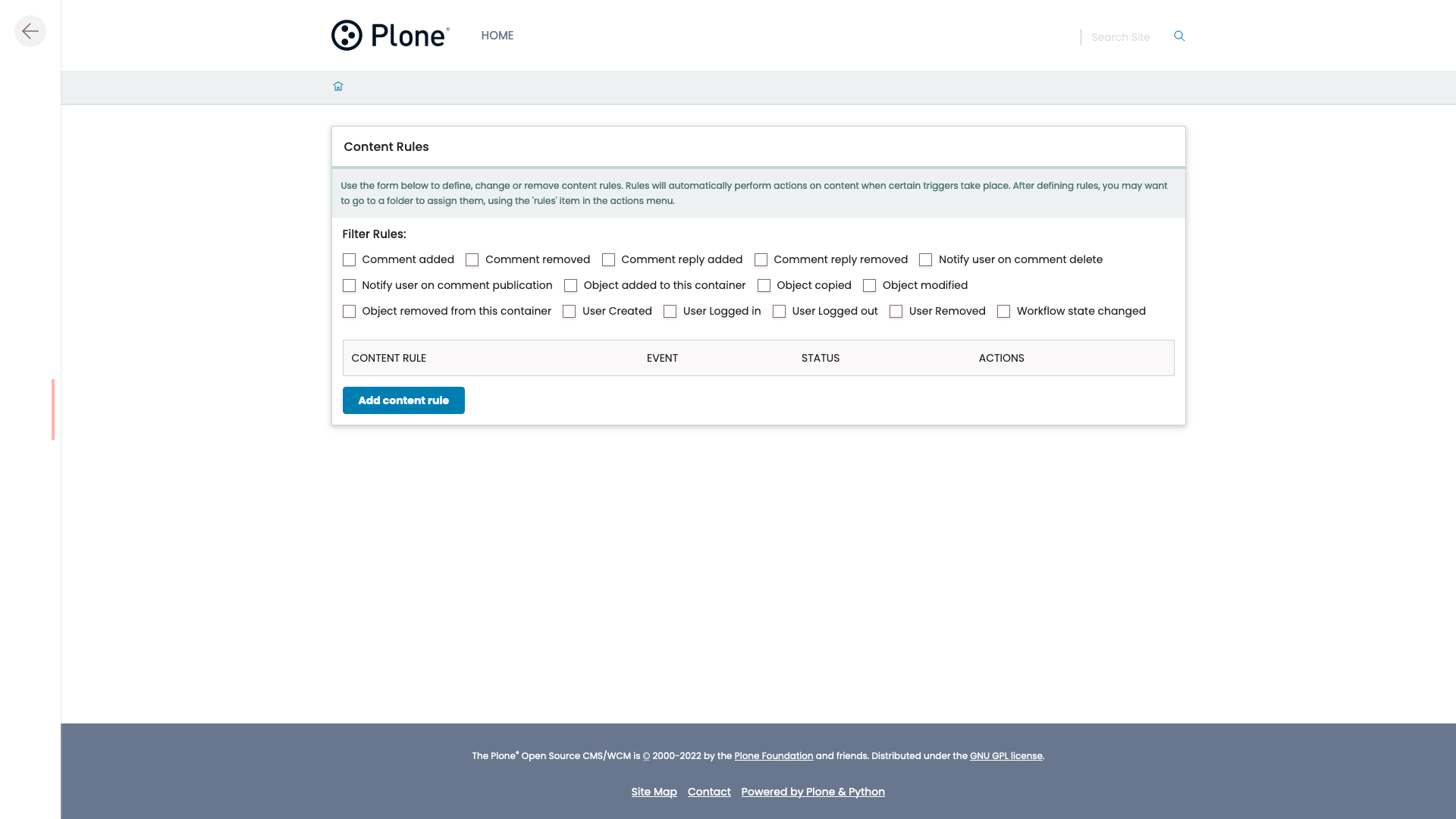
Select Add content rule.
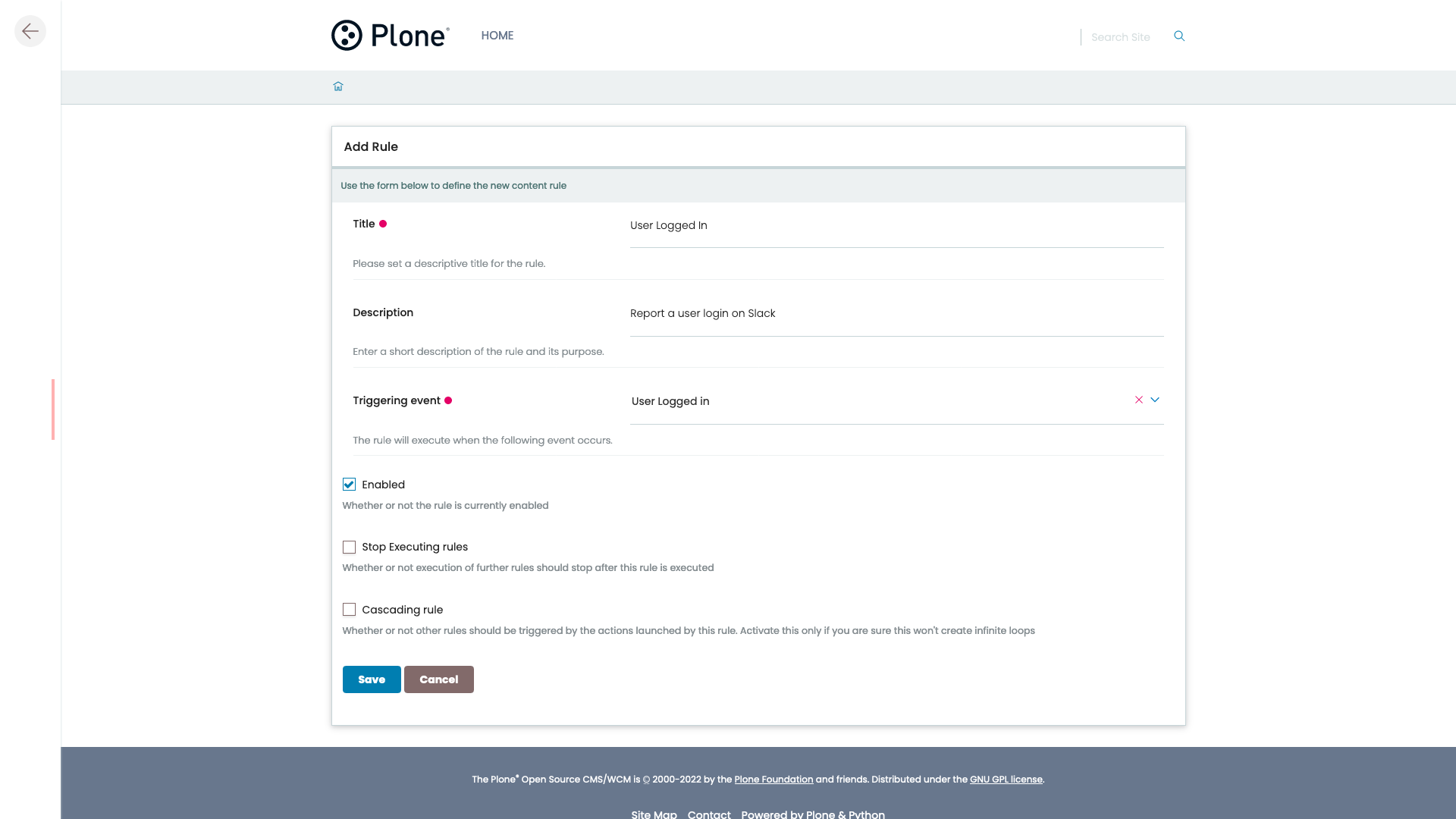
Enter a Title, such as
User Logged In, and an optional Description.In Triggering event, select User Logged in, and save the form.
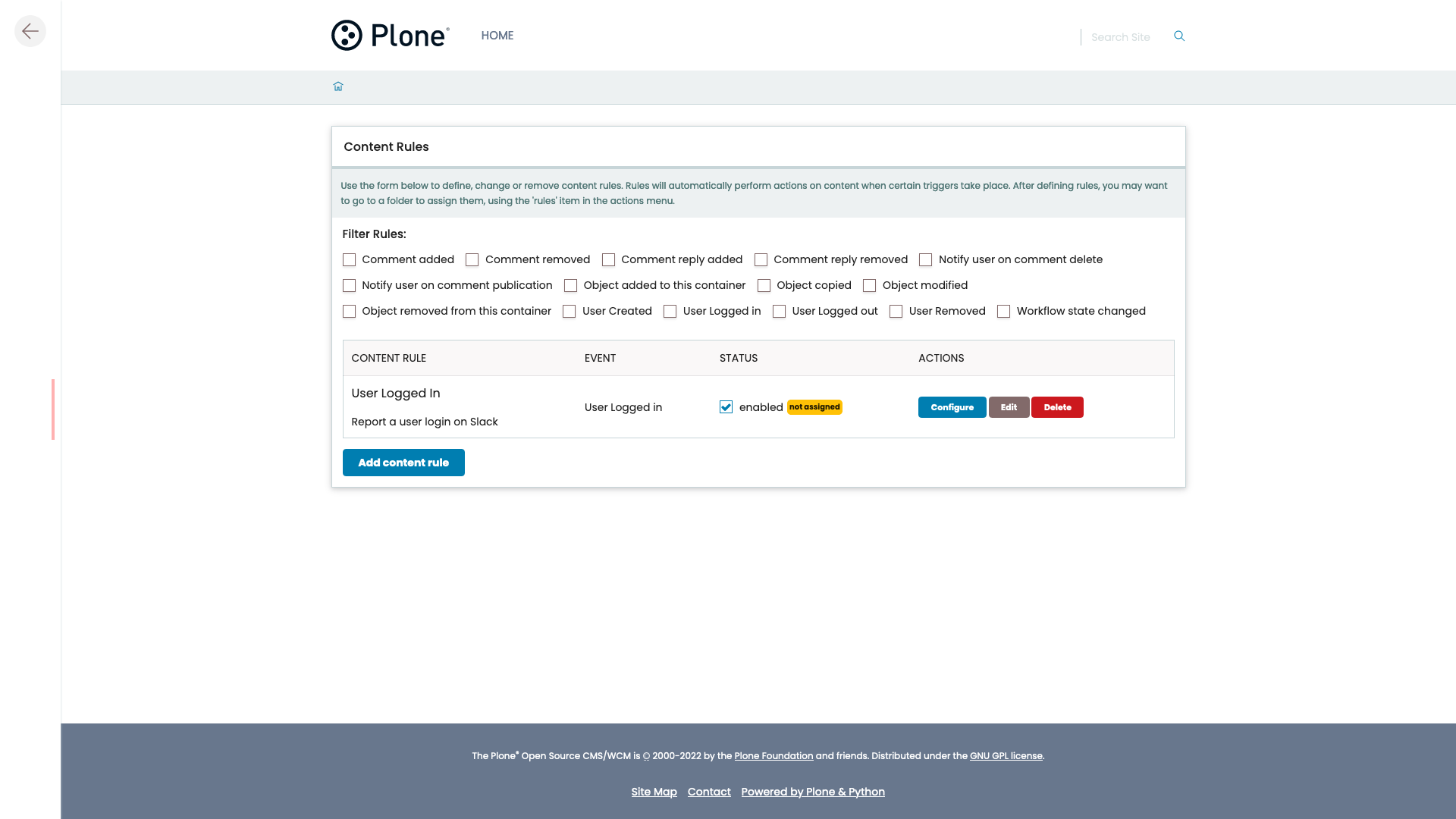
In the list of rules, select Configure next to the new rule.
Add the Slack action#
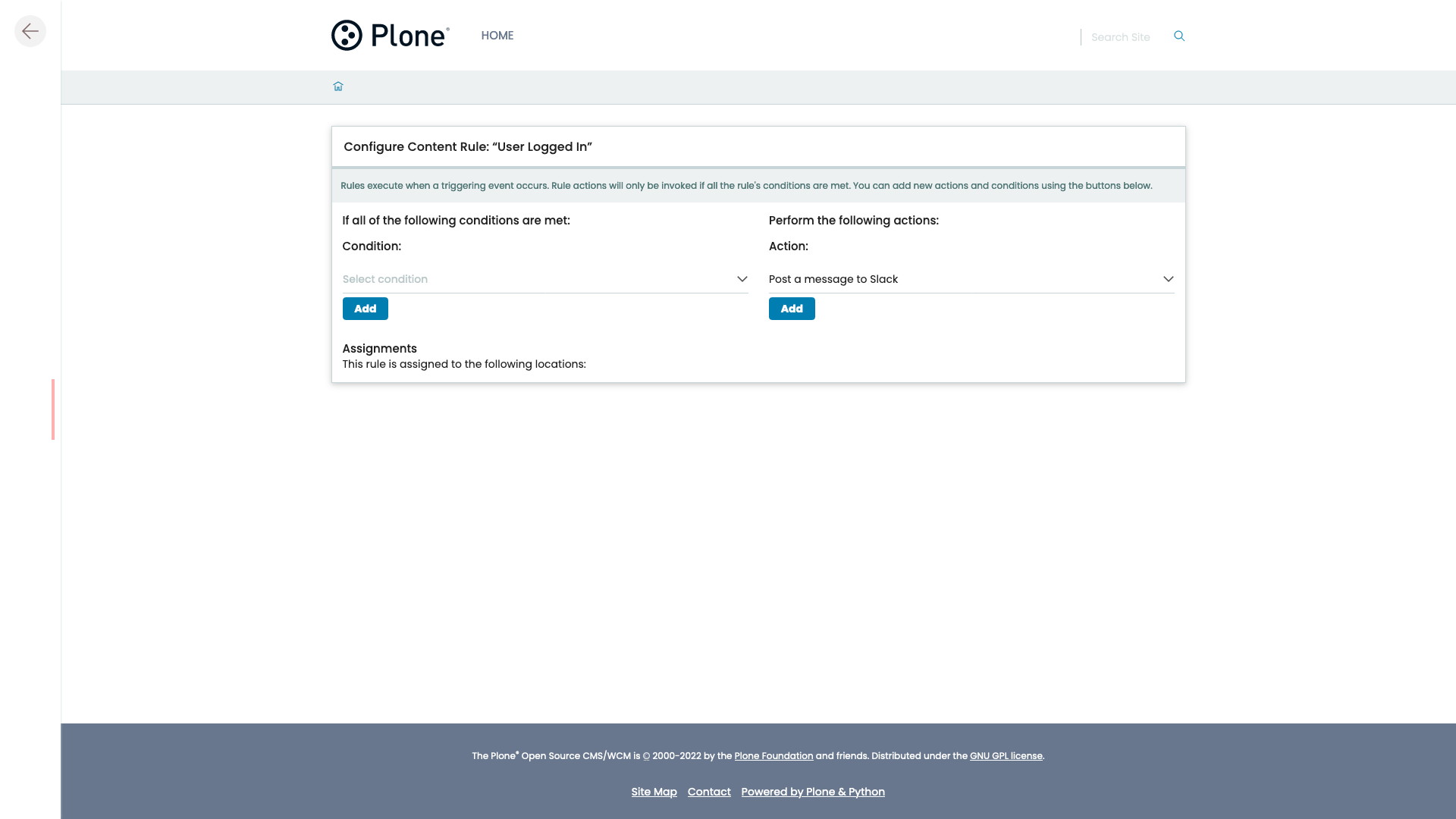
Under Perform the following actions, select Post a message to Slack in the Action list, and select Add.
Fill in the form. The Slack action describes every field.
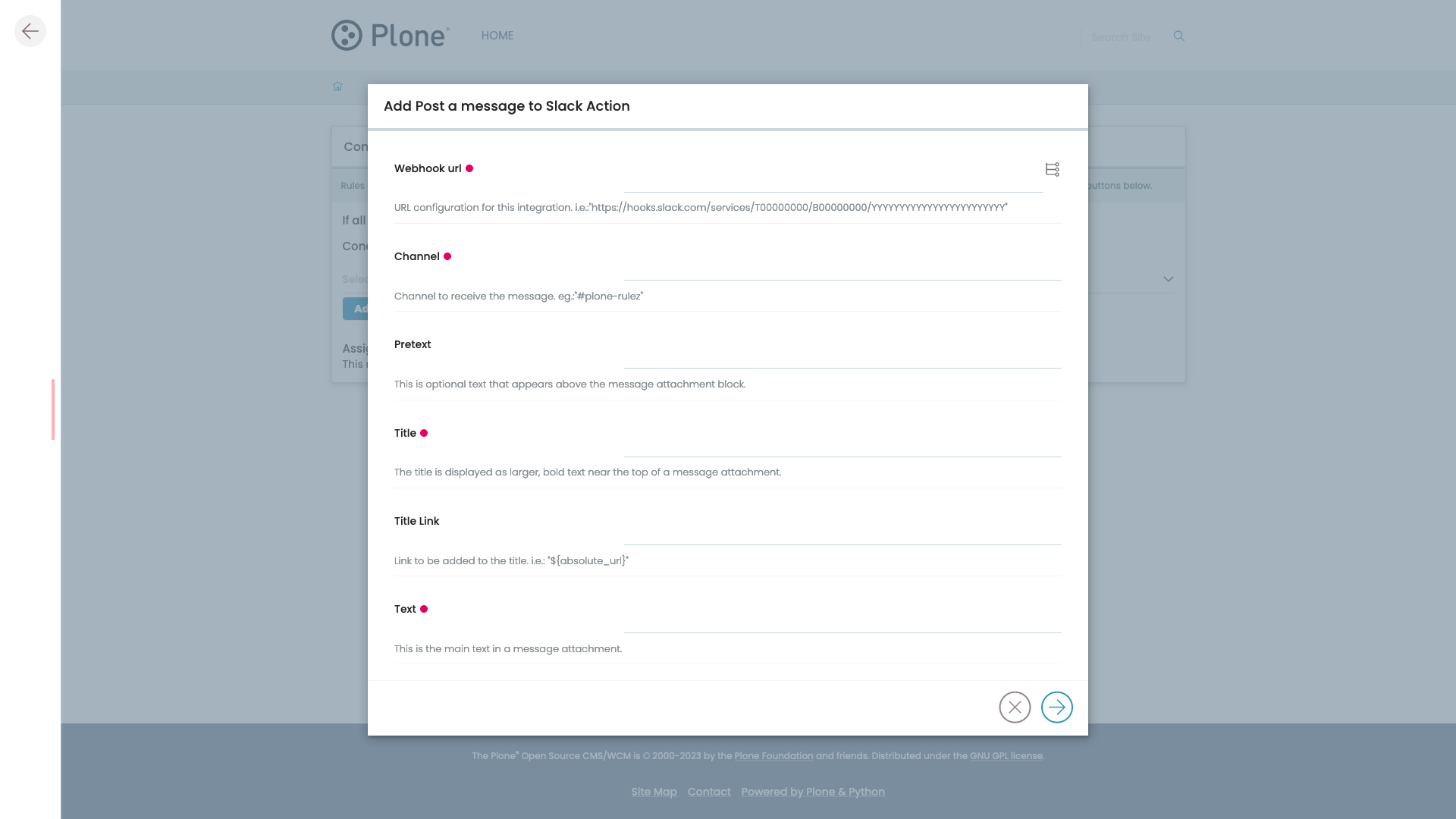
Use
${...}variables to include details about what triggered the rule. This example uses the full name of the user who logged in.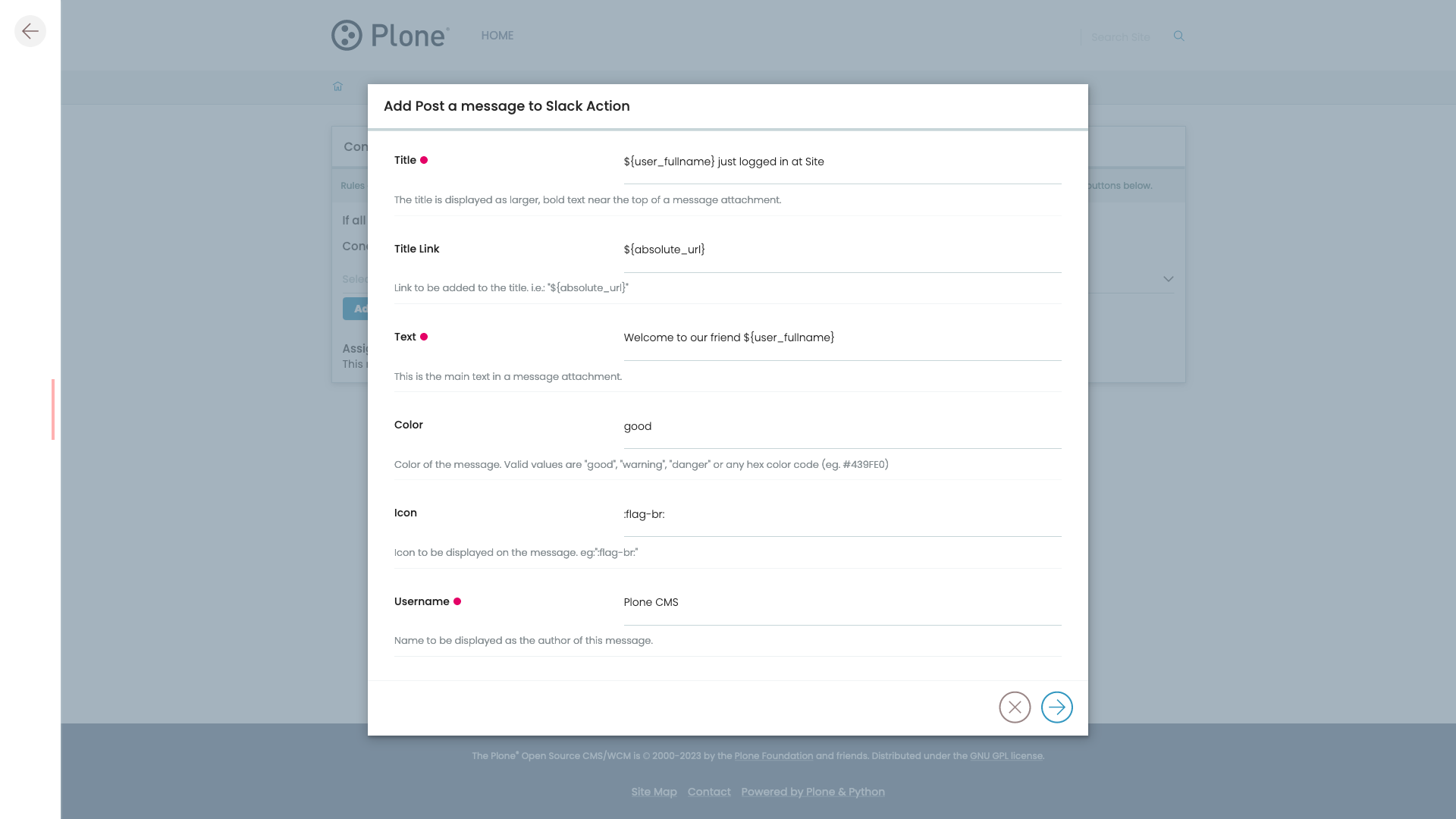
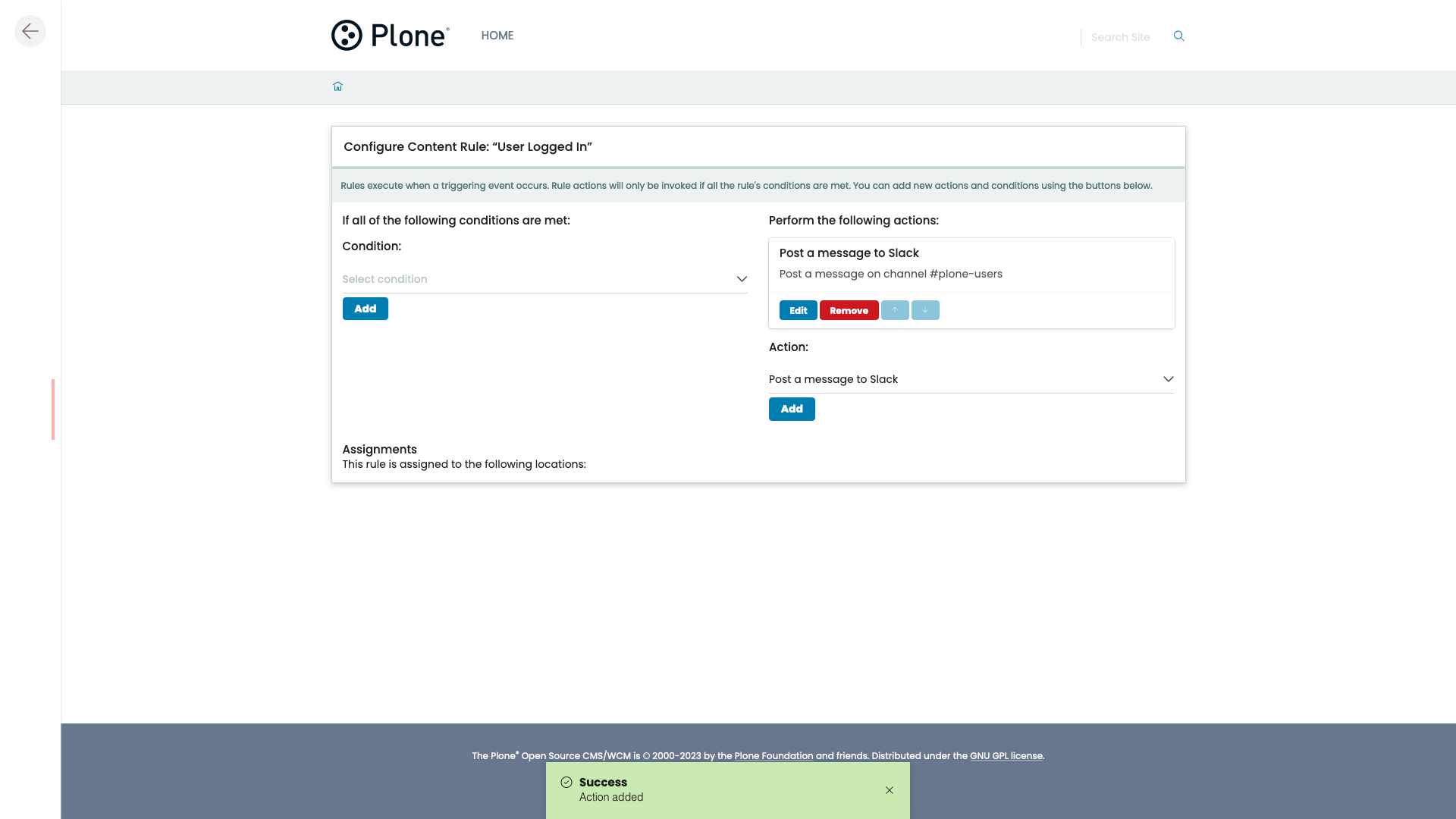
Save the form.
The action appears under Perform the following actions.
Assign the rule#
A rule runs only in the places it is assigned to. To run it on the whole site, assign it at the site root.
Go to the site root, and open Rules from the actions menu of the toolbar.
In Available content rules, choose the rule, and select Add.
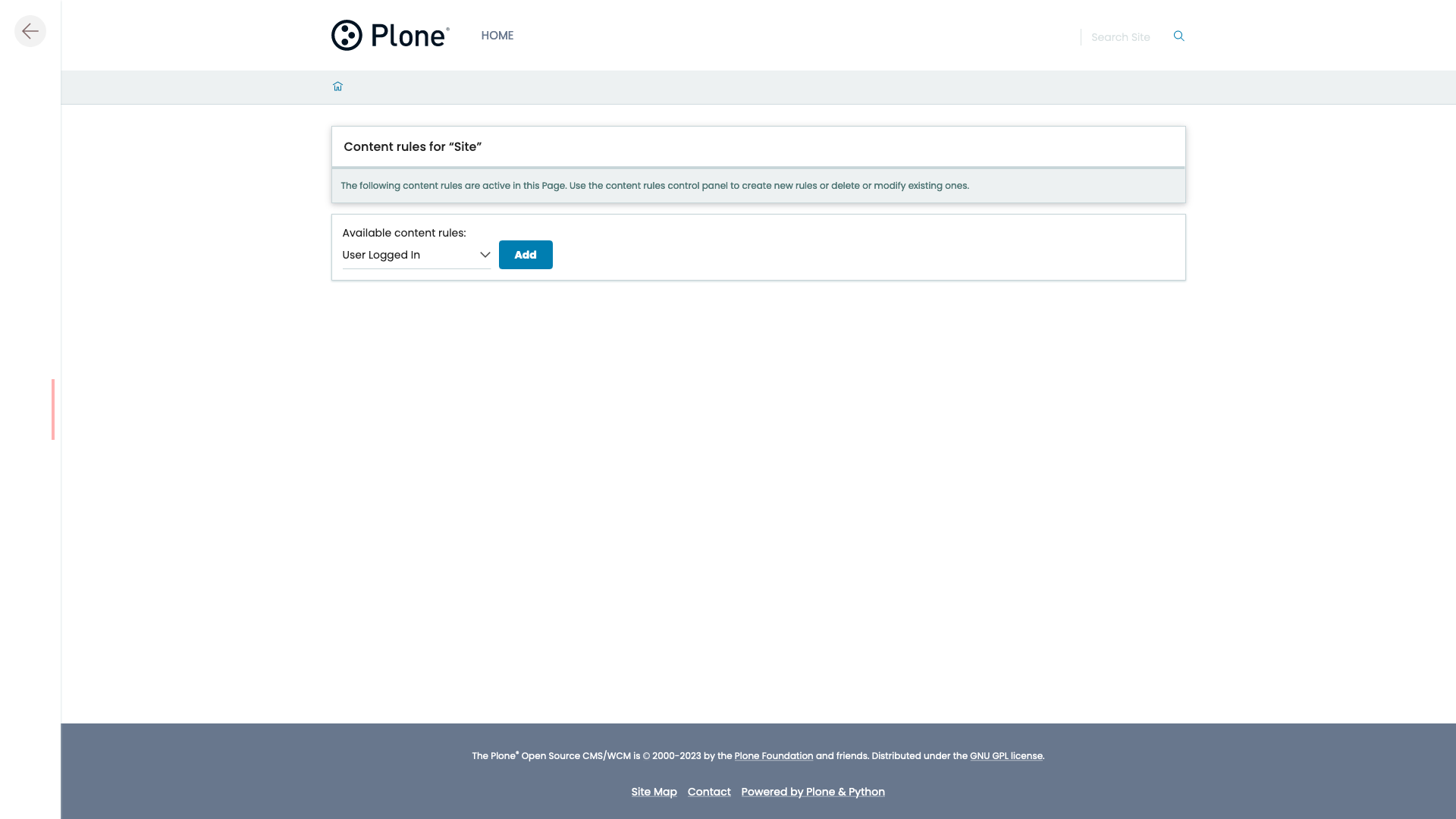
The rule now appears as enabled, and applies to subfolders.
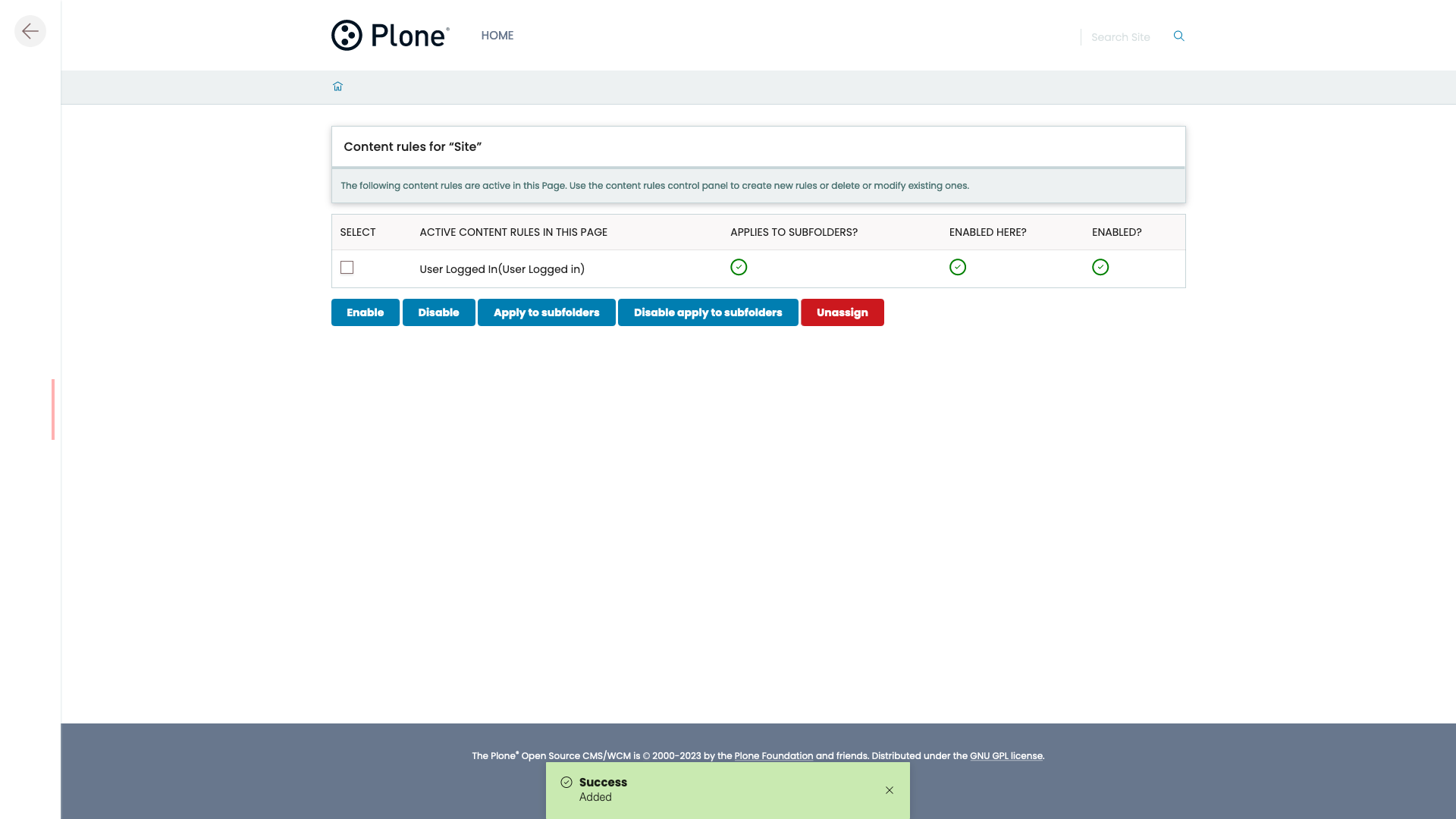
To run the rule only inside a folder, go to that folder, and assign the rule from its Rules page instead.
Check the result#
Log in to the site in another browser. A message appears in the Slack channel.
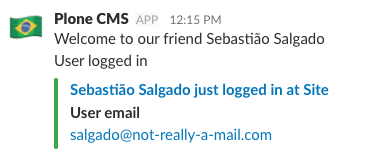
If no message appears, check the Plone backend log for errors from the contentrules.slack logger.
Python API lists the messages it writes.