
How to configure a provider#
Register an identity provider, test it, and remove it.
A provider is a configured instance of a driver. The driver knows how to talk to a kind of service; the provider record holds this site's credentials for one particular service. Two GitHub organizations are two providers sharing one driver.
For a specific provider, Provider recipes has a recipe. This page is the part every provider has in common.
Add a provider#
Open the Identity providers control panel.
Choose a driver. See Shipped drivers for what each one is.
Fill in the form and save.
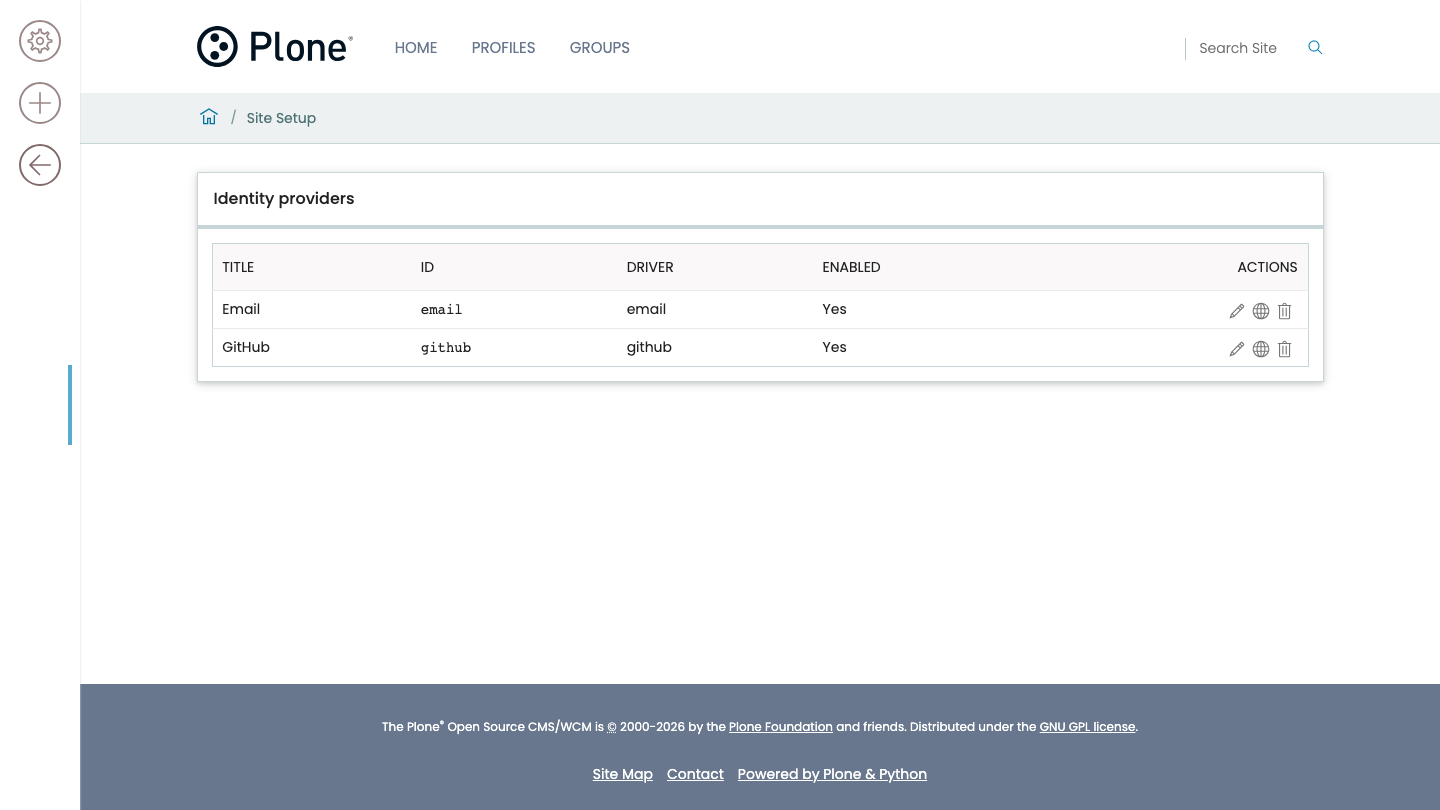
The form is generated from the driver's published schema, so a site that installs a third-party driver gets that driver's form with no frontend change. Every field is listed in The provider form.
Enable a provider and show it on the login page#
Two switches, answering different questions.
- Enabled
Whether the provider works at all. A disabled provider keeps its settings and its stored identities, and nobody can sign in or link through it.
- Show on the login screen
Whether the login page offers a button for it.
An enabled provider that is not shown is still usable. It stays linkable from a user's own Sign-in methods page, and an account already linked to it still signs in through it.
That is what a staff-only or invitation-only provider looks like: usable, and not advertised to everybody who reaches the login form.
Note
A provider configured before this setting existed reads back as shown. Upgrading a site does not take its login buttons away.
Test the connection#
Use the Test connection action.
It fetches the provider's discovery document, or validates the static configuration for drivers that have no discovery, and reports what it found. It clears the discovery cache first, because a button that reports the answer from twelve hours ago is worse than no button at all.
Important
Test connection does not sign anybody in. It tells you the issuer and the network are right. It says nothing about the client secret, the redirect URI, or the trust switches—those show up only in a real sign-in, in the audit log.
Replace or keep the client secret#
The control panel serializes a stored secret as a mask, never as its value.
To keep the stored secret, save the form with the mask unchanged.
To replace it, type the new one over the mask.
Warning
Do not clear the field to keep the existing secret. Blanking it sends an empty string, which is a different instruction, and it destroys the stored secret.
A GenericSetup export omits secrets, so an export of your provider configuration is not enough to rebuild a working site. The secrets have to travel separately, by whatever means your deployment already uses for secrets.
Read About secrets for why secrets behave differently here than when the site acts as an authorization server.
Delete a provider#
Deleting a provider removes its configuration.
It does not delete the identities linked through it. Those are account data, and a configuration change is not an instruction to lock people out. If you want the identities gone as well, remove them first.
Verify#
A working provider has all four of these:
it appears on
/login, if you asked for it to be shownTest connection reports success
a sign-in through it returns you signed in
the audit log has an
authenticatedentry for it
If any of those fails, How to troubleshoot sign-in is organized by exactly these symptoms.
Next steps#
The decisions about what the provider is allowed to mean are separate guides, because each is a real decision rather than a field to fill in:
How to link accounts by email—attaching a sign-in to an account that already exists
How to control account creation—admitting only people who already have an account
How to map provider groups—turning the provider's groups into local ones, and restricting sign-in
How to enable back-channel logout—so a sign-out at the provider ends the session here